
Month view is the big picture — a full-month grid where every scheduled item sits on its day.
Where to find it: Left menu → Calendar → the Month tab. Part of the Calendar guide.
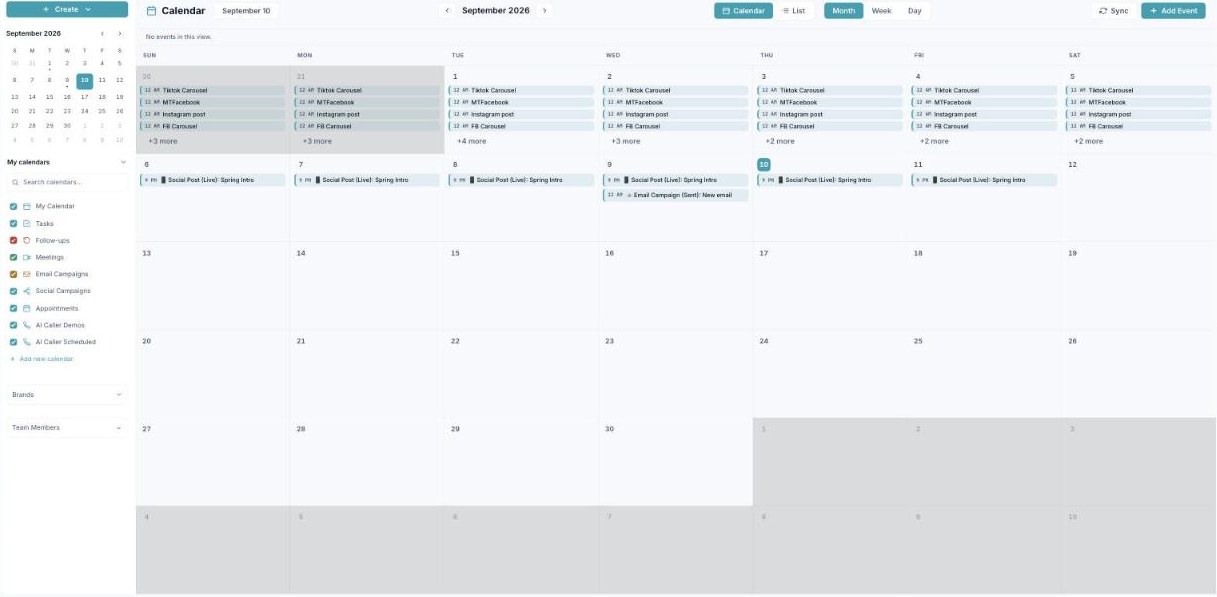
Month view shows the whole month, with every scheduled item on its day.
Reading the grid
Each day cell lists its scheduled items as small color-coded chips — a social post, an email campaign, a meeting, a task. When a day has more than fits, a +N more link shows the rest. Today is highlighted so you never lose your place.
Getting around
Use the ‹ › arrows by the month name to move between months, and the mini-calendar on the left to jump to any date. The chip colors come from your calendars — so you can tell a campaign from a meeting at a glance.
When to use it
Month view is best for planning — spotting busy weeks, gaps, and how your posting cadence looks across the month. For hour-by-hour detail, switch to Week or Day.
What’s next
- Back to the Calendar overview.
- See Week view.
- See Day view.
- See List view.
- See Creating an event.
- See Calendars & colors.
- See Appointment scheduling.