
Your calendar isn’t one calendar — it’s color-coded layers, one per kind of work, that you turn on and off from the left rail.
Where to find it: Left menu → Calendar. Part of the Calendar guide.
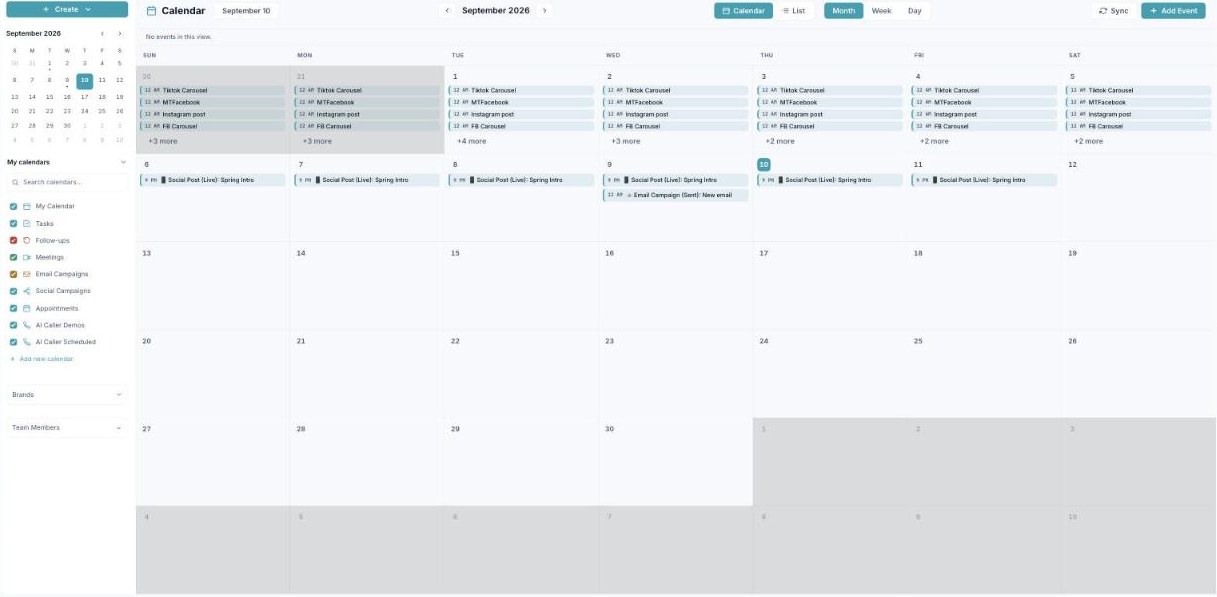
The left rail — your calendars are color-coded layers you turn on and off.
What’s on your calendar
The left rail lists your calendars — each a color-coded, toggleable layer that pulls in a different kind of item automatically:
| Calendar | Color | What lands here |
|---|---|---|
| My Calendar | Blue | Events you create yourself. |
| Tasks | Purple | To-dos from your boards. |
| Follow-ups | Red | CRM follow-up reminders. |
| Meetings | Green | Meetings, webinars, and Google-synced events. |
| Email Campaigns | Orange | Scheduled email sends. |
| Social Campaigns | Blue | Scheduled social posts. |
| Appointments | Amber | Bookings from your booking pages. |
| AI Caller (Scheduled & Demos) | Cyan | Scheduled calls and booked demos. |
Because these feed in on their own, the calendar is a single view of everything happening across your marketing — you don’t add campaigns or calls here, they appear here. (Items that flow in this way open their source editor when clicked and can’t be edited on the calendar.)
Show & hide layers
Each calendar has a checkbox and a color. Uncheck one to hide that kind of item (hide Tasks to focus on campaigns, say); check it to bring it back. The color is what you see on every chip and block in the grid, so you can tell a campaign from a meeting at a glance. Use the search box to find a calendar, and + Add new calendar to create your own custom layer (name + color).
Filter by date, brand & person
The mini-month at the top marks days that have events with a dot; click a day to filter the grid to just that date (a “Showing events for…” chip appears, with Clear filter). Below your calendars, the Brands and Team Members sections filter the calendar to a single brand or teammate — useful when you manage more than one.
The Create menu
The + Create button at the top of the rail is a shortcut to make a Meeting, Task, or Appointment, or to jump to My Bookings.
Sync & time zones
The Sync button keeps the calendar in step with your connected sources. Google Calendar sync is two-way — your Google events show up here as Meetings, and events you create here are pushed back to Google (once enabled in settings). Every event stores its own time zone, so times read correctly wherever you are; booking pages show both your customer’s and your zones.
What’s next
- See what customers can book in the Appointment scheduling guide.
- Back to the Calendar overview.
- See Month view.
- See Week view.
- See Day view.
- See List view.
- See Creating an event.
- See Appointment scheduling.