
List view trades the grid for a simple list of upcoming events — easiest when you just want to read down what’s coming.
Where to find it: Left menu → Calendar → the List toggle (top left, next to Calendar). Part of the Calendar guide.
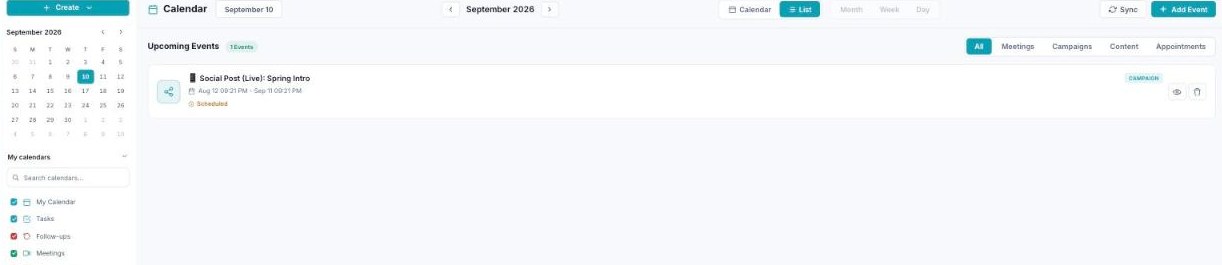
List view drops the grid and shows your upcoming items as a clean, scannable list.
The event list
Each item is a card showing its title, a type badge (Campaign, Meeting, Content, Appointment), its date range, and its status (e.g. Scheduled). Quick actions on the right let you view or delete it.
Filter by type
Tabs across the top narrow the list — All, Meetings, Campaigns, Content, Appointments — so you can focus on just one kind of item.
Switching back
The Calendar / List toggle at the top left flips between this list and the grid views at any time.
What’s next
- Back to the Calendar overview.
- See Month view.
- See Week view.
- See Day view.
- See Creating an event.
- See Calendars & colors.
- See Appointment scheduling.