
The Email Builder is where you create the emails you send to your audience. You can start from a blank canvas, or you can just tell Darwin what you want and let it write the whole thing for you. Either way, the goal is the same — a polished email with a strong subject line, a clean layout, and copy that sounds like your brand.
You don’t have to be a designer or a copywriter. Describe the email in plain words and Darwin (our AI) does the heavy lifting — the subject line, the headlines, the body, the buttons, even a deliverability check. Then you tweak whatever you want. If you’d rather build it by hand, the drag-and-drop builder is right there too.
Left menu → Marketing → Campaigns → Email Template Builder. You can also open the full drag-and-drop Email Builder from any generated email with Open in Builder (or the Advanced link at the top of the Template Builder).
Two ways to build an email
There’s no wrong way to start. Most people let Darwin draft the first version, then open it in the builder to fine-tune. Here’s how the two options compare.
| Way to build | What it is | Best when |
|---|---|---|
| Let Darwin build it (AI chat) | You describe the email in plain words and answer a few quick questions. Darwin writes and designs it live. | You want a strong first draft fast, or you’re not sure where to start. |
| Build it yourself (drag & drop) | A visual canvas where you drag elements and layouts on, then style them. | You want full control over the layout, or you’re editing something Darwin made. |
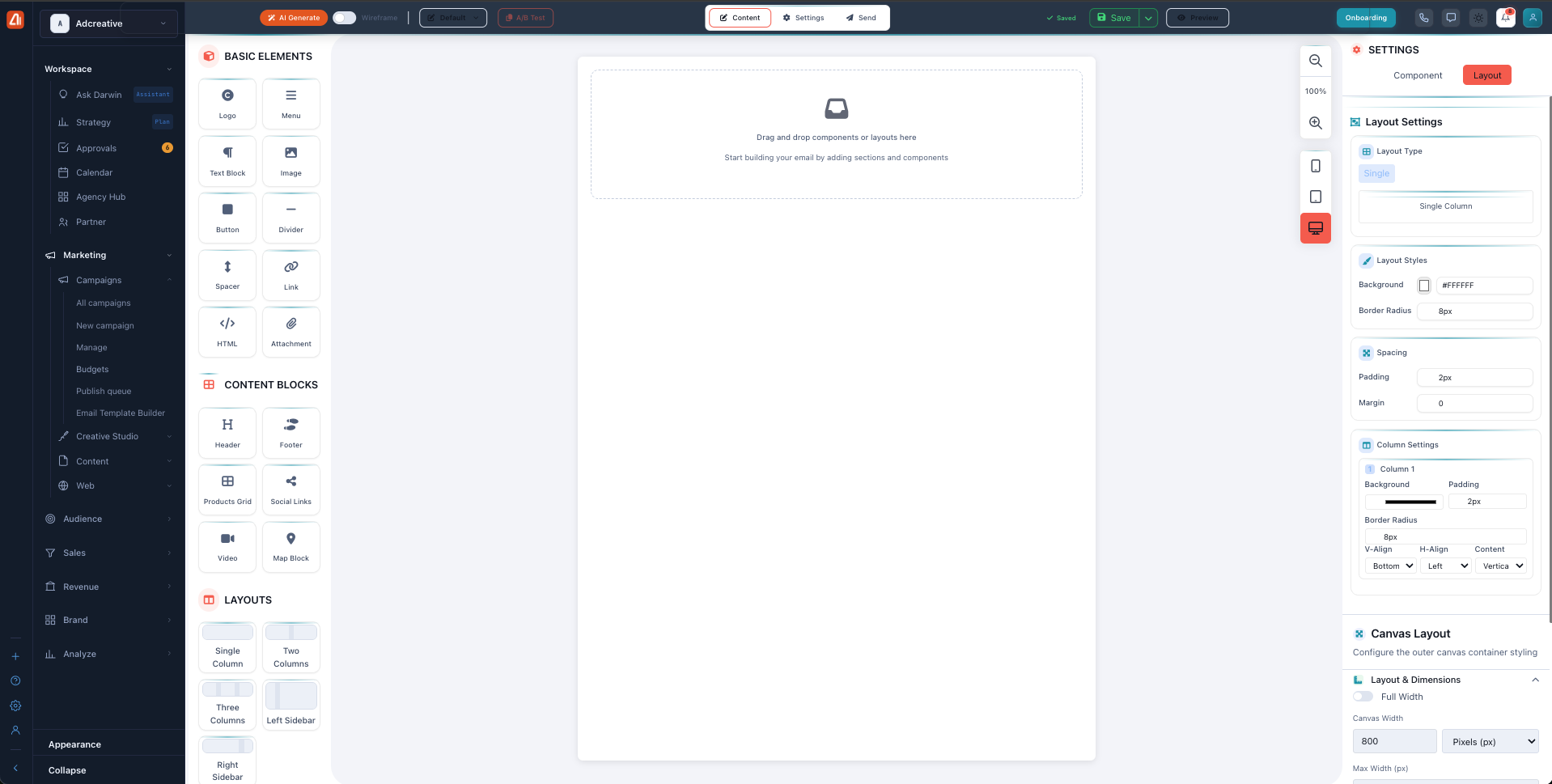
The drag-and-drop builder — drag elements and layouts onto the canvas and style them on the right.
The sections — each has its own guide
Email Builder is organized into the areas below. Open any one for the full, detailed walkthrough.
| Section | What it covers | Guide |
|---|---|---|
| Let Darwin Write It | Describe the email and Darwin drafts it for you. | Open guide → |
| Drag & Drop Editor | Build and edit your email block by block on a canvas. | Open guide → |
| Settings, Send & Save | Subject and sender settings, sending, and saving as a template. | Open guide → |
Common questions
Do I have to design it myself?
No. Just describe what you want and Darwin builds the whole email — copy, layout, and design. You only tweak what you’d like to change.
What’s the deliverability score?
It’s a quick health check (out of 100) that estimates how likely your email is to land in the inbox instead of spam. Darwin flags spam triggers as it writes so the score stays high.
What’s the difference between Save and Save as Template?
Save saves your current email. Save as New Template makes a reusable copy you can start future campaigns from.
Can I schedule an email?
Yes. On the Send tab, pick Schedule for later instead of Send now and choose your date and time.
Why can’t I send yet?
You need to connect an email provider on the Integrations page first. Once it’s connected, the send button turns on.
How many emails can I send?
Your plan includes a monthly send limit. The Estimated recipients panel on the Send tab shows how many sends you have left this month.
Can I preview on mobile?
Yes. Both the AI preview and the builder have a device switcher, so you can check desktop, tablet, and mobile before you send.
Having trouble? If you can’t send, the most common cause is that no email provider is connected — connect one on the Integrations page and the grayed-out send button will turn on. If sending is blocked, you may have hit your monthly send limit; check the Estimated recipients panel. And if a saved template isn’t showing in the picker, make sure you used Save as New Template (not the normal Save) and that its brand matches the email you’re working on.
What’s next
- Open the Let Darwin Write It guide.
- Open the Drag & Drop Editor guide.
- Open the Settings, Send & Save guide.