
The fastest way to a finished email: tell Darwin what you want and it writes the copy and lays it out for you.
Where to find it: Email Builder → AI. Part of the Email Builder guide.
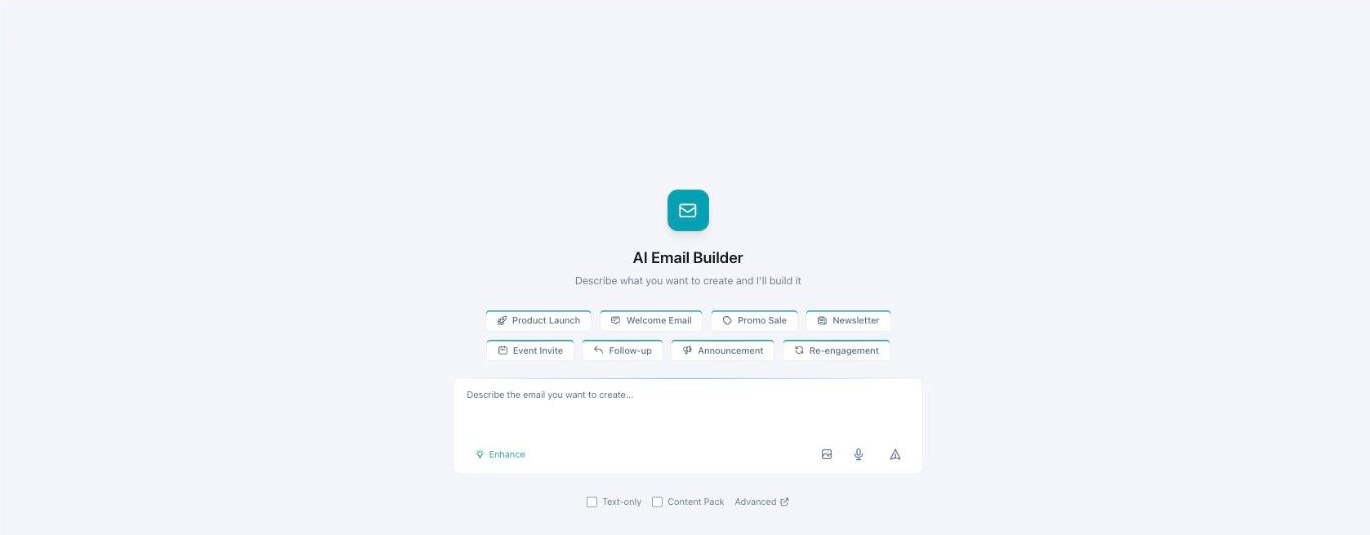
The AI Email Builder — describe what you want, or pick a quick-start chip.
Let Darwin write your email
When you open the Email Template Builder, it starts as a simple chat. You describe the email you want — for example, “Warm welcome email for new subscribers, friendly tone, introducing what to expect.” Darwin confirms what it heard, then asks a few quick questions, one at a time.
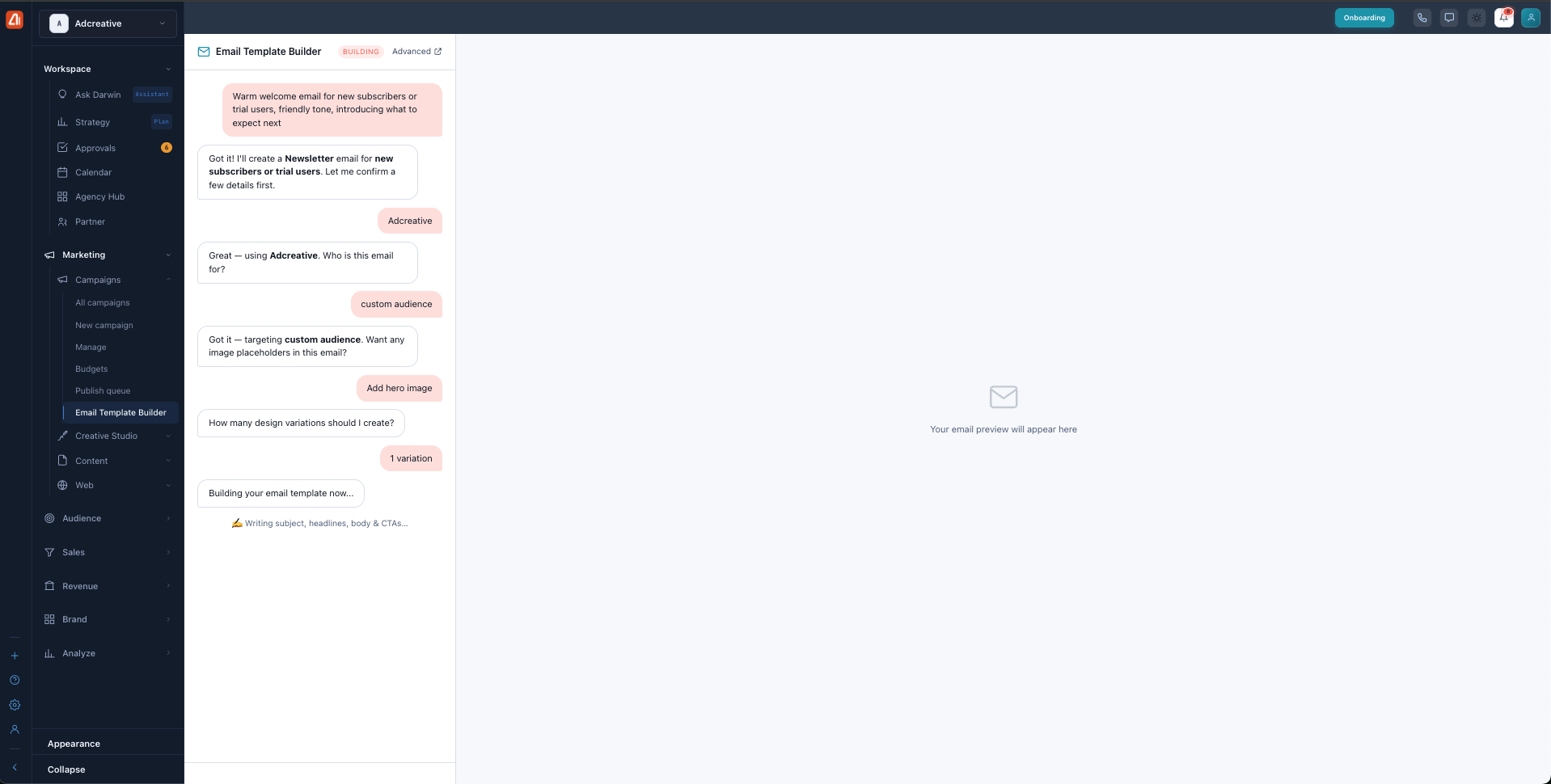
Describe your email in plain words and answer a few quick questions — Darwin writes it for you.
The questions are short and easy to answer:
- Which brand to use.
- Who the email is for (a custom audience).
- Whether to add a hero image.
- How many design variations to create.
Then Darwin builds the email live. It writes the subject line, headlines, body, and CTAs; picks the layout, blocks, and colors; refines the voice to match your brand; and checks deliverability and spam triggers along the way. When it’s done, you get a full preview.
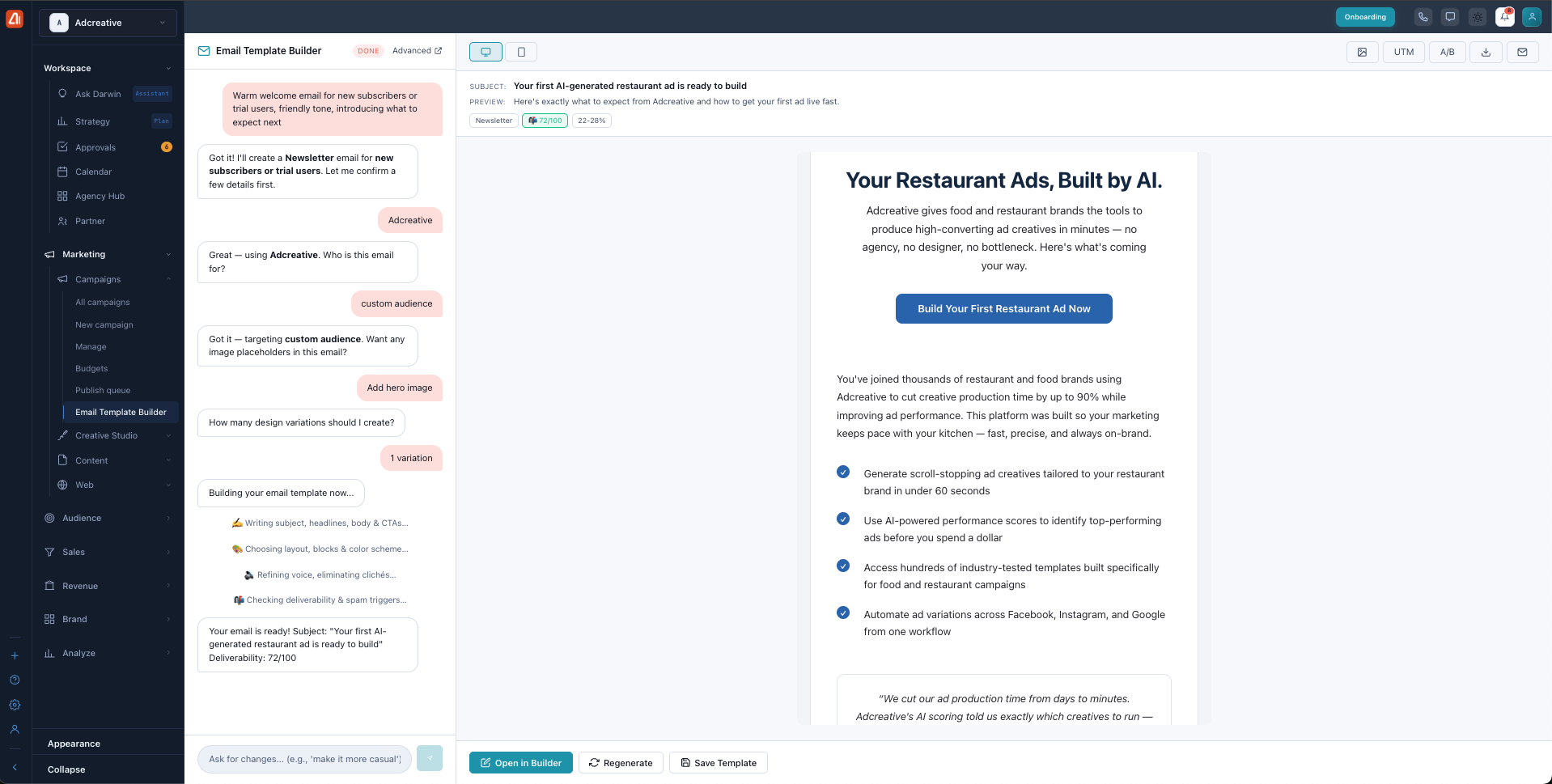
The finished email with a subject, preview text, and deliverability score — open it in the builder to edit, regenerate, or save as a template.
The preview shows the subject line, the preview text, a deliverability score (for example, 72/100), and an estimated open-rate range. A desktop/mobile toggle lets you check how it looks on both. Here’s the whole flow:
- Describe the email you want in plain words.
- Answer Darwin’s quick questions — brand, audience, hero image, and how many variations.
- Watch Darwin build it, then review the preview, subject line, and deliverability score.
- Choose what’s next: Open in Builder to edit it, Regenerate for a fresh take, or Save Template to keep it.
Give Darwin a little context in your first message — the goal, the tone, and who it’s for. “Friendly welcome email for new subscribers” gets you a much better draft than just “welcome email.”
What’s next
- Back to the Email Builder overview.
- See Drag & Drop Editor.
- See Settings, Send & Save.