
A sequence is a series of messages that go out over time — set the steps, the channels, and review before you launch.
Where to find it: Left menu → Marketing → Sequences. Part of the Email Marketing guide.
Build a sequence (a series over time)
A sequence sends a set of messages over days or weeks, so you can stay in touch without doing it by hand. You start on the Set up your sequence screen: name it, describe the goal, and pick a goal preset that sets the cadence for you.
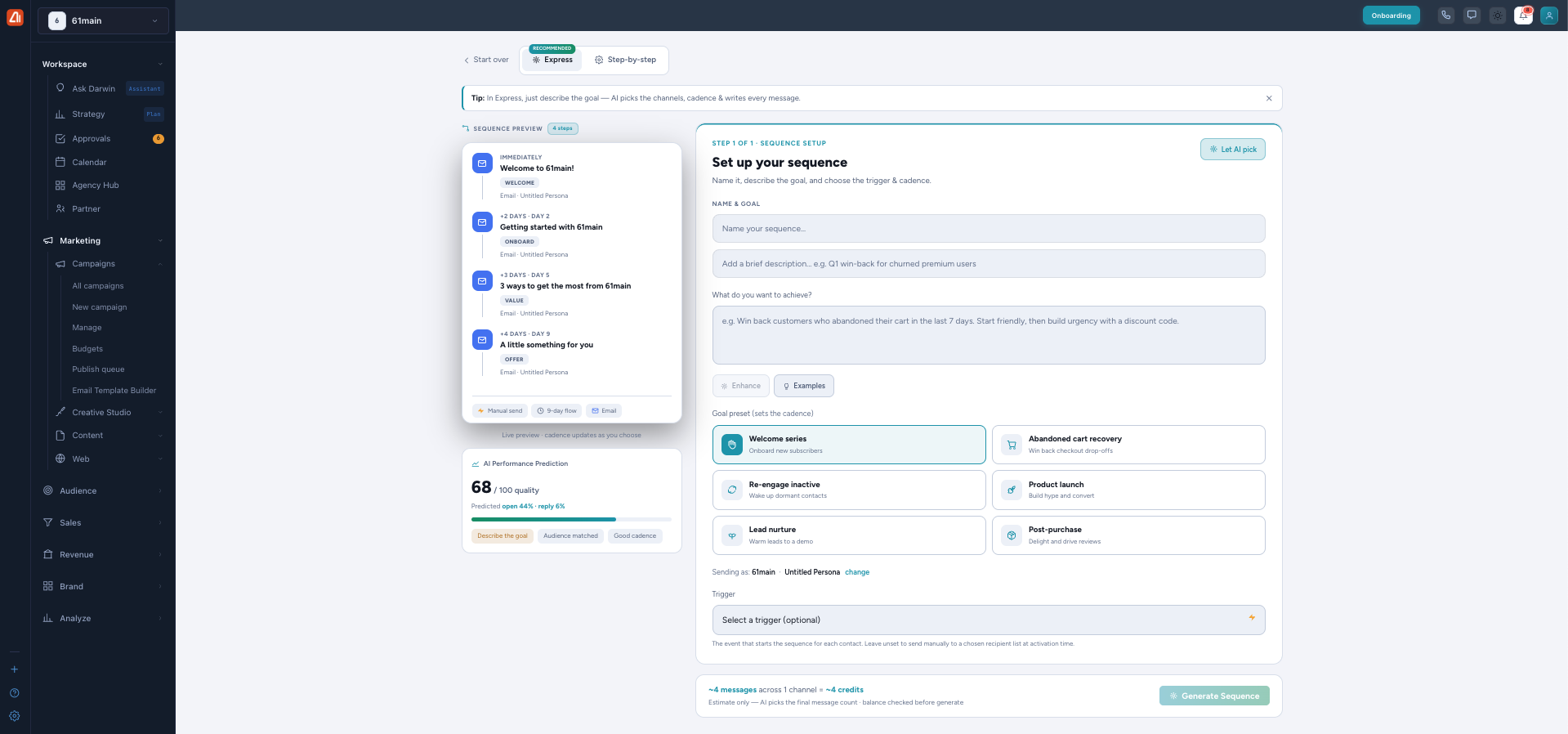
Set up your sequence — goal presets, a step-by-step preview, and an AI prediction.
Goal presets
Pick the preset that fits your goal — each one sets a smart cadence:
- Welcome series — onboard new subscribers.
- Abandoned cart recovery — win back checkout drop-offs.
- Re-engage inactive — wake up dormant contacts.
- Product launch — build hype and convert.
- Lead nurture — warm leads toward a demo.
- Post-purchase — delight buyers and drive reviews.
You can set an optional Trigger — the event that starts the sequence for each contact. A Sequence preview shows the steps and their timing (for example: Welcome immediately, then Day 2, Day 5, Day 9). An AI Performance Prediction shows a quality score plus predicted open and reply rates. A typical run is about 4 messages = ~4 credits.
Express or step-by-step
There are two ways to build a sequence:
- Express (recommended) — just describe the goal. The AI picks the channels, sets the cadence, and writes every message.
- Step-by-step — you walk through Setup → Audience & channels → Content.
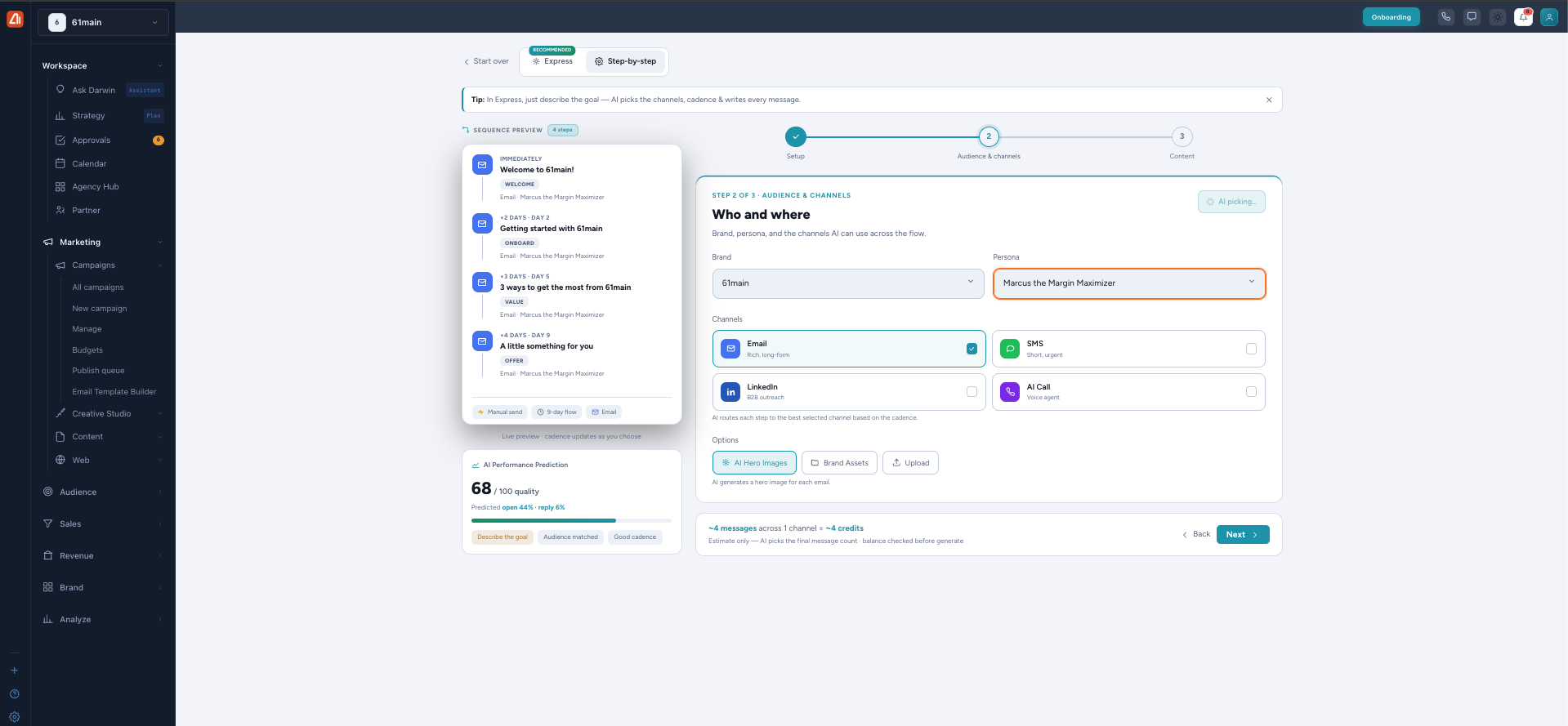
Step-by-step — choose your persona and channels, and turn on AI Hero Images.
In the Audience & channels step you choose the Brand, a Persona, and one or more channels:
- Email — rich, long-form messages.
- SMS — short and urgent.
- LinkedIn — B2B outreach.
- AI Call — a voice agent that calls for you.
The AI routes each step to the best channel. You can also turn on AI Hero Images so Darwin makes a hero image for each email.
Review and send your sequence
When Darwin finishes, you see the whole series laid out — every email with its subject line, preheader, and a live preview, plus the day it goes out (for example Day 0, Day 4, Day 7, and so on). At the top are predicted numbers for the whole flow: predicted open rate, expected click rate, estimated reach, expected response rate, and predicted conversion. Read through it, edit any email you want, then use the Activate panel on the right to go live.
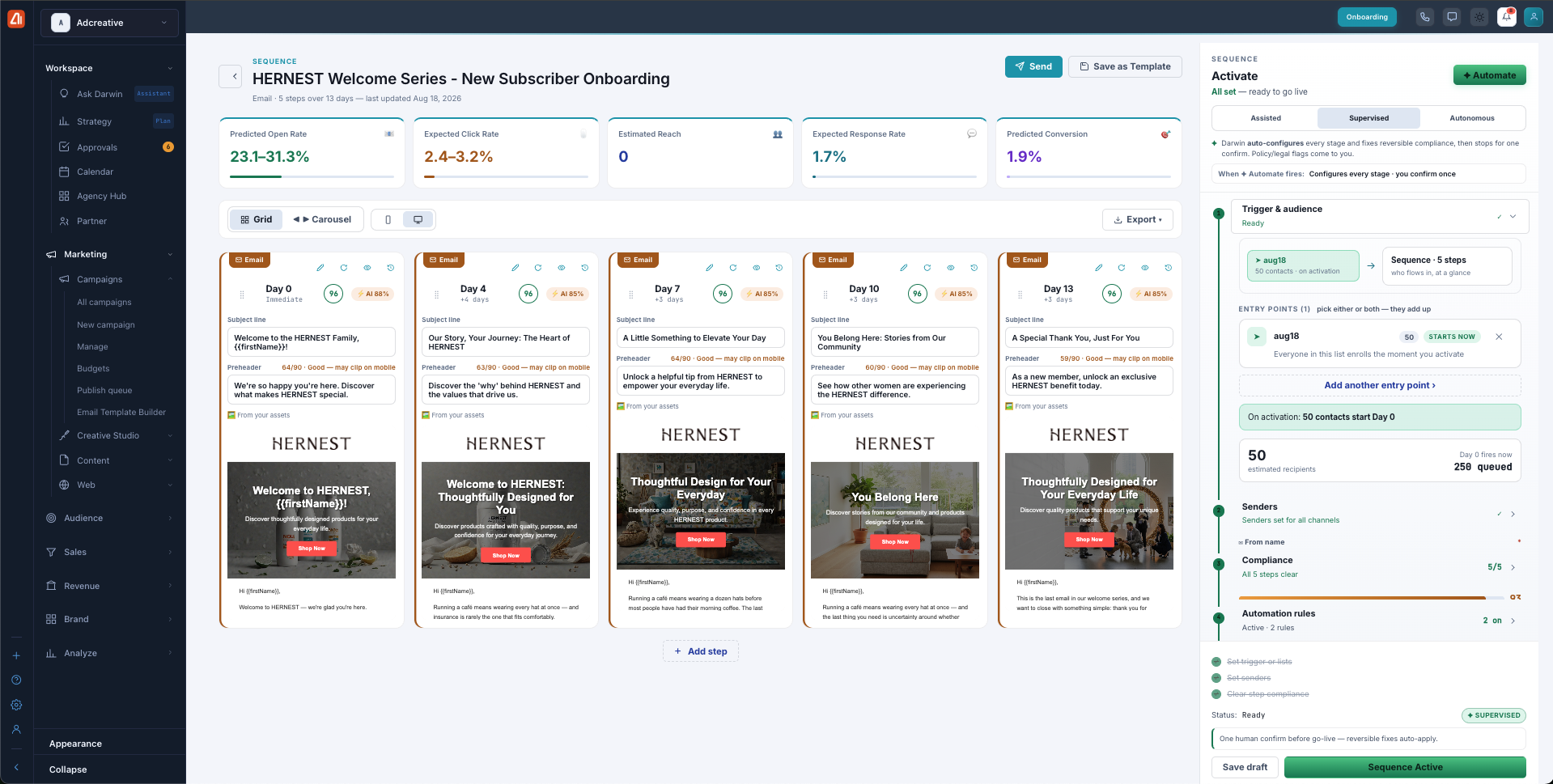
Review before you send. Every email in the series shows a preview and its send day, with predicted rates up top — set the trigger, senders, and audience, then activate.
Before it goes live, the Activate panel confirms the trigger & audience (who enters the flow and when), the senders, and a compliance check on every step. You also pick how much Darwin runs on its own:
| Mode | What it means |
|---|---|
| Assisted | You set up and confirm each part yourself. |
| Supervised | Darwin sets up every stage and fixes small, reversible issues, then stops for one confirm before go-live. Anything legal or risky comes to you. |
| Autonomous | Darwin configures and runs the whole flow on its own. |
When it looks right, click Send (or Sequence Active) to launch it — or Save as Template to reuse it later.
For the full setup, see the Email Sequences Guide.
What’s next
- Back to the Email Marketing overview.
- See One-time Campaigns.
- See Template Builder.
- See Track Results & Tips.