
Every task in the plan comes with a draft — the actual email, sequence, post, or ad Darwin wrote for it. The Staged Drafts tab is where you read them and approve what ships.
Where to find it: Left menu → Workspace → Strategy → a strategy → Staged Drafts. Part of the Strategy guide.
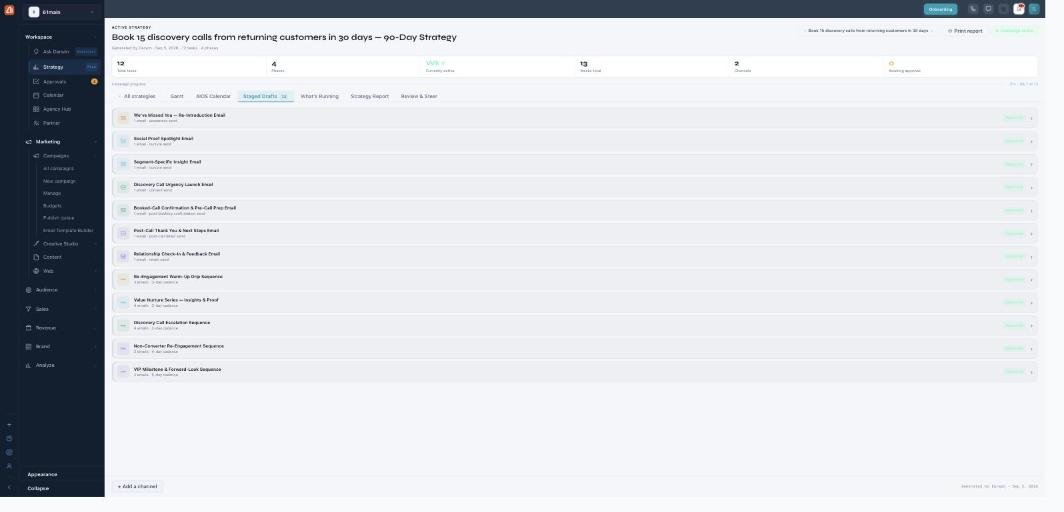
Staged Drafts — the content Darwin wrote, waiting for your yes.
What's in the list
Each row is one generated deliverable — an email like “We’ve Missed You — Re-Introduction Email”, or a multi-step sequence like “Re-Engagement Warm-Up Drip Sequence”. Click a row to preview the full content and its status.
Approving
Approve drafts one at a time or in bulk. Before a draft can go out, its audience is proposed and must be confirmed — so nothing ever sends to a list you didn’t choose. A draft moves from staged to approved as you sign it off.
Nothing sends here
Approving a draft records your sign-off; it does not send anything. Sending happens later, only after the whole plan is approved and activated — and even then, only to an audience you’ve confirmed.
What’s next
- Back to the Strategy overview.
- See Create a strategy.
- See Gantt.
- See AIOS Calendar.
- See What’s Running.
- See Strategy Report.
- See Review & Steer.