
Brain & Personality is where you shape how your AI communicates — its voice, its canned answers, and how it hands conversations to your team.
Where to find it: Left menu → AI Chatbot → Brain & Personality. Part of the AI Chatbot guide.
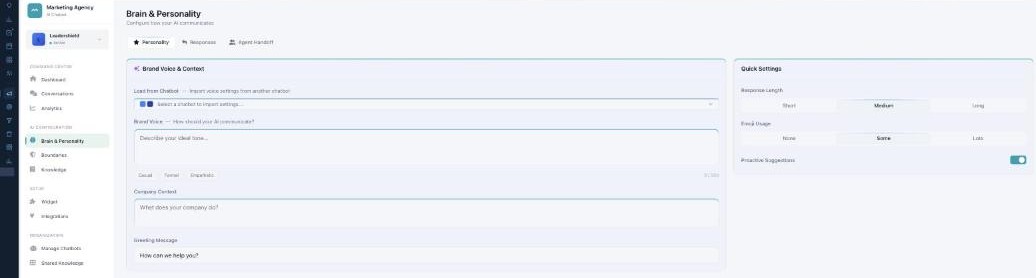
Brain & Personality — teach your AI how to talk.
Personality
On the Personality tab, describe your Brand Voice (how the AI should sound — there are quick example chips), your Company Context (what you do), and the Greeting Message visitors see first. Load from Chatbot copies another bot’s voice. The Quick Settings panel sets Response Length (Short / Medium / Long), Emoji Usage (None / Some / Lots), and Proactive Suggestions.
Responses
The Responses tab holds Response Templates — ready answers to common questions, each triggered by keywords and toggled on/off. Set a Fallback Message for when the AI doesn’t understand, and a Fallback Behavior: escalate to a human, collect the visitor’s contact details, or suggest related help.
Agent Handoff
The Agent Handoff tab controls when and how a human takes over:
- Routing Method — Round Robin, Least Busy, Skills Based, or Manual.
- Handoff Settings — notify the customer, send a conversation summary, let the AI assist during a human chat, auto-return to AI, and email a satisfaction survey on resolve.
- Escalation Rules — the situations that trigger a handoff.
- Business Hours and Live Agents — your team, their skills, and how many chats each can handle at once.
The model is handled for you
You don’t pick an AI model or tune technical settings — Marketing Titan runs a capable model for you, so you can focus on voice and rules.
What’s next
- Back to the AI Chatbot overview.
- See Managing your chatbots.
- See Boundaries.
- See Knowledge.
- See Shared Knowledge.
- See The web Widget.