
The Widget is the chat bubble visitors see on your site. Style it, set how it behaves, and copy a snippet to install it — with a Live Preview the whole time.
Where to find it: Left menu → AI Chatbot → Widget. Part of the AI Chatbot guide.
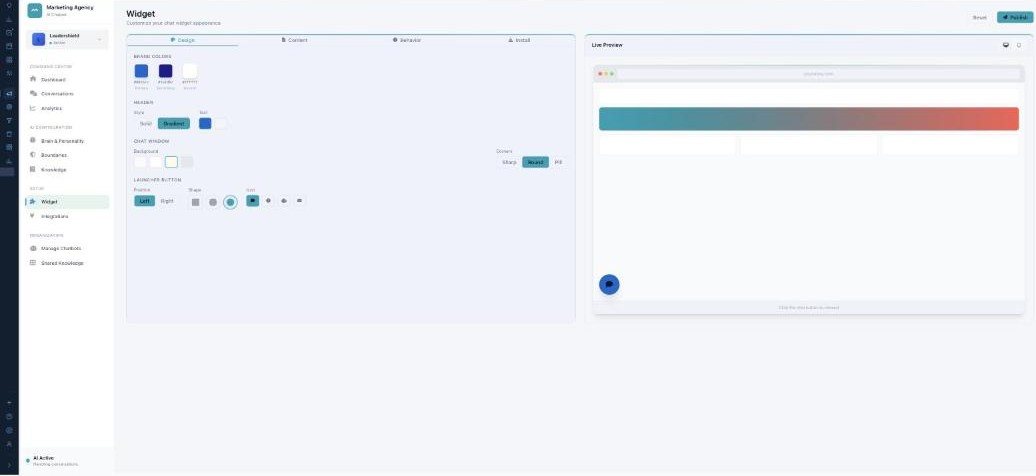
The Widget — your chatbot on your website.
Design & content
The Design tab sets Brand Colors, the Header style, the Chat Window background and corners, and the Launcher Button position, shape, and icon. The Content tab sets the header title and status, the Welcome Message, the input placeholder, and the “Powered by” badge.
Behavior & lead capture
The Behavior tab controls auto-open (with a delay), show-on-mobile, the typing indicator, and sounds. Contact Info Capture chooses how it asks for details — Smart Capture (recommended), Require Before Chat, or Open Chat — and CRM Destination sends captured leads straight into your CRM (Leads, Contacts, or Deals) under the right brand.
Installing it
The Install tab gives you the Embed Code to paste before </body> (with a one-click Copy), step-by-step Platform Guides for WordPress, Shopify, Wix, and custom sites, and your Widget ID. Hit Publish to push your changes live.
What’s next
- Back to the AI Chatbot overview.
- See Managing your chatbots.
- See Brain & Personality.
- See Boundaries.
- See Knowledge.
- See Shared Knowledge.