
Knowledge is what this chatbot draws on to answer questions accurately. Add your own content, and decide how much of your workspace’s shared knowledge it can use.
Where to find it: Left menu → AI Chatbot → Knowledge. Part of the AI Chatbot guide.
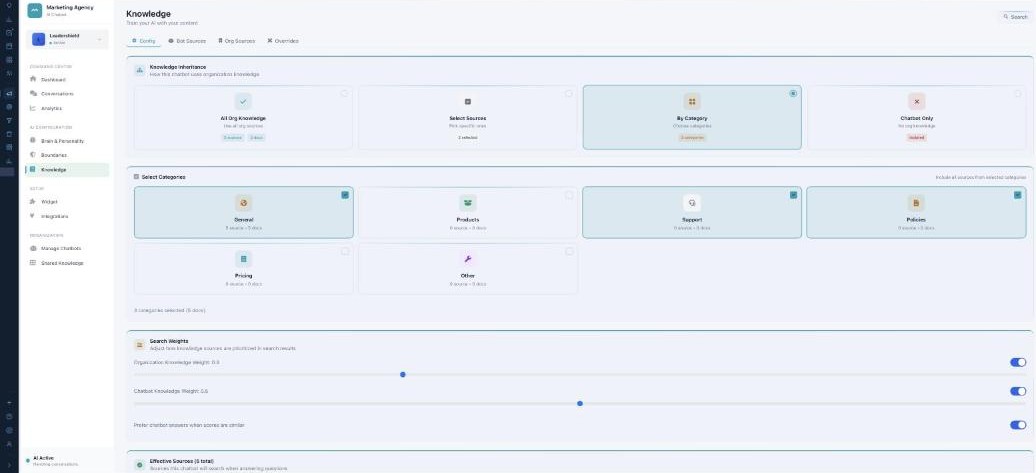
Knowledge — give this chatbot the facts it needs.
Adding sources
On Bot Sources, click Add Source. You can add a Website URL (it crawls and indexes the site), Upload Documents (PDF, DOCX, TXT, CSV), connect Notion, Google Drive, or Confluence, use an API Connection, or add Manual Entry Q&A pairs. Each source gets a category.
How it uses knowledge
The Config tab sets Knowledge Inheritance — whether this bot uses All Org Knowledge, Select Sources, By Category, or is Chatbot Only (isolated). Search Weights let you balance Organization vs Chatbot knowledge and “prefer chatbot answers when scores are similar.” Effective Sources shows exactly what it will search, and Test Search lets you check a query.
Org sources & overrides
Org Sources shows the shared, organization-wide knowledge this bot inherits (read-only here — managed in Shared Knowledge). Overrides let this chatbot give a specific answer that overrides the shared knowledge, with a priority boost.
What’s next
- Back to the AI Chatbot overview.
- See Managing your chatbots.
- See Brain & Personality.
- See Boundaries.
- See Shared Knowledge.
- See The web Widget.