
The Settings tab holds your partner profile and the setup that makes payouts work. Fill it in once so commissions can actually reach you.
Where to find it: Left menu → Workspace → Partner → Settings. Part of the Partner Program guide.
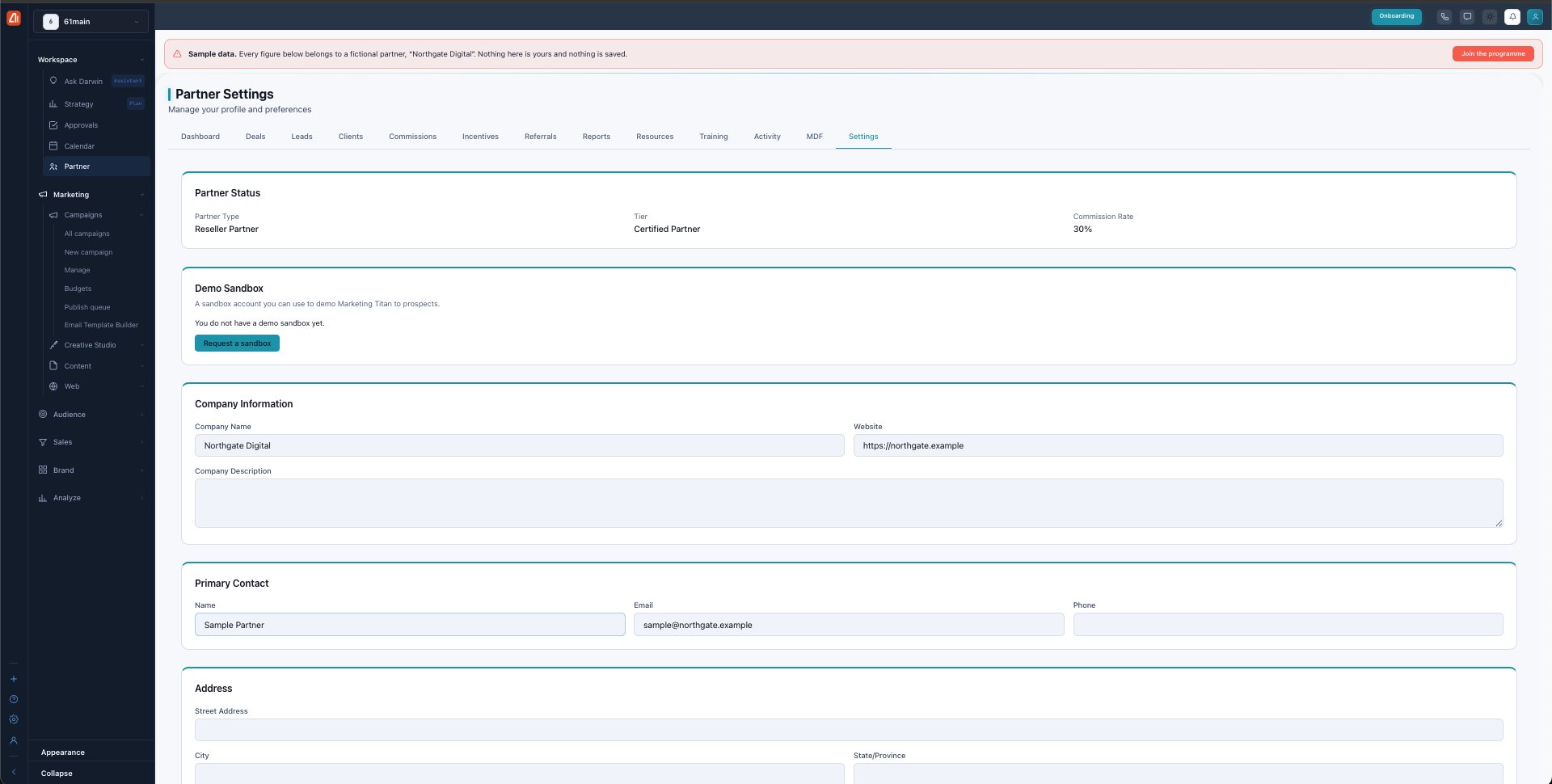
Partner Settings — your profile, how you get paid, and your demo sandbox.
Partner status
At the top, Partner Status shows your Partner Type (Reseller, Affiliate, or Agency), your current Tier, and your Commission Rate — a quick read of where you stand in the program.
Demo sandbox
Request a sandbox gives you a real, throwaway Marketing Titan account to demo the platform to prospects. It’s seeded with sample content and lasts 90 days. You only ever get one — requesting again returns the same sandbox.
Company profile
Fill in your Company Information (name, website, description), Primary Contact (name, email, phone), and Address. This is the information shown on your partner profile and used on tax and payout paperwork.
Getting paid — Stripe
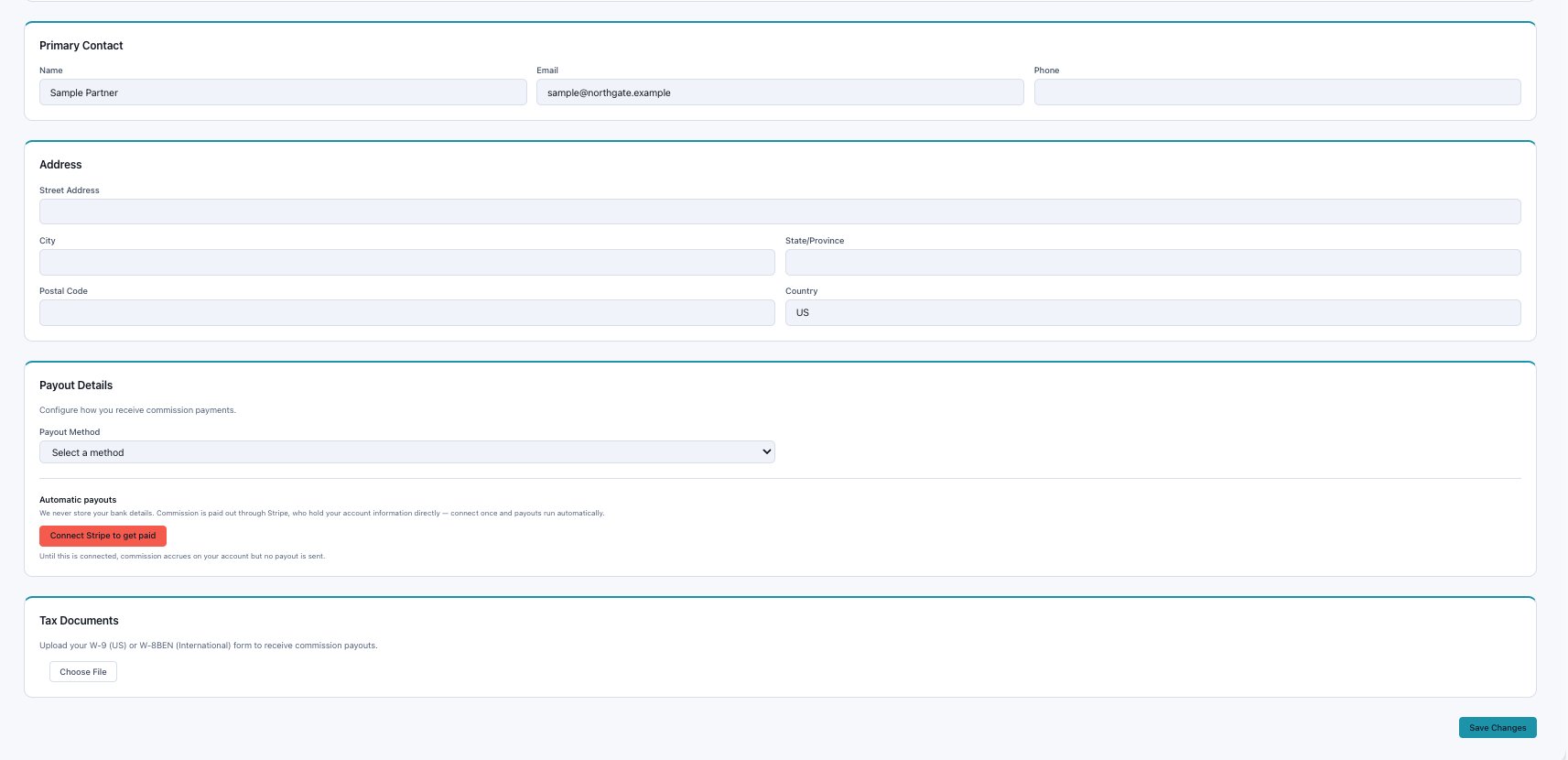
Payout Details — connect Stripe to receive commission, and upload your tax form.
Under Payout Details, Connect Stripe to get paid — Stripe holds your bank details directly (Marketing Titan never stores them), and once connected, payouts run automatically. Until you connect Stripe, commission accrues but no payout is sent.
Tax documents
Upload your W-9 (US) or W-8BEN (international) under Tax Documents — it’s required before commission payouts can go out. Hit Save Changes at the bottom to store everything.
What’s next
- Back to the Partner Program overview.
- See Deals & registration.
- See Leads.
- See Clients.
- See Commissions.
- See Incentives & SPIFs.
- See Referrals.
- See Reports & scorecards.
- See Resources.
- See Training & certification.
- See Activity.
- See MDF.